AI Tattoo Generator & Maker
GLOBAL SOFT .LTDArt & Design
0.00.00 Reviews
- Version
- 1.0.6
- Installs
- 50.00K
- Age Rating
- Everyone
Screenshots
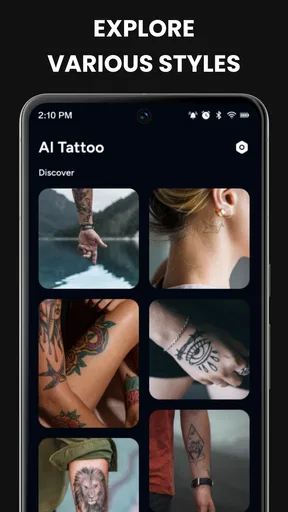
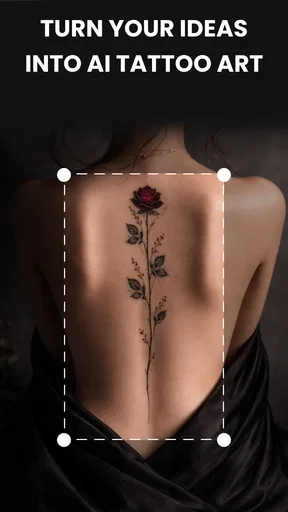
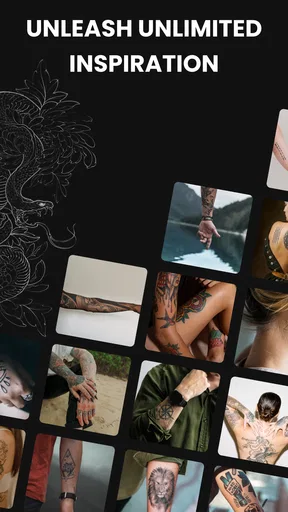
Our Review of AI Tattoo Generator & Maker
 Analysis by Appyee
I approached AI Tattoo Generator & Maker as a practical design tool rather than a replacement for a professional tattoo artist. Its appeal is easy to understand: I can explore a tattoo idea, see how a concept might look on my body, and prepare something closer to a usable stencil without starting with drawing software. That makes it especially interesting for people who have a vague idea but need help turning it into a visual reference.
This is a free art and design app from GLOBAL SOFT .LTD, aimed at Everyone and available for devices running Android 8.0 or later. It has passed 50K+ installs, and the current version is 1.0.6. The basic proposition is focused and approachable: use AI to develop tattoo concepts, use an AR-style preview to judge placement, and create a stencil-oriented result for discussion or preparation.
My overall impression is that it works best during the early and middle stages of the tattoo process. I would use it to compare directions, test scale and placement, and bring a clearer reference to an artist. I would not treat an automatically generated image as a finished tattoo pattern without careful cleanup and professional review.
How the design process feels in everyday use
I find the design process most useful when I treat each result as a question to investigate, not a verdict on what I should get tattooed. A quick shortlist can reveal whether I care more about the subject, the silhouette, or how it sits on the body. That distinction also leads into a more important part of using a camera-based design tool: deciding what I am comfortable sharing and what I want to keep under my control.
Starting with an idea instead of a blank page
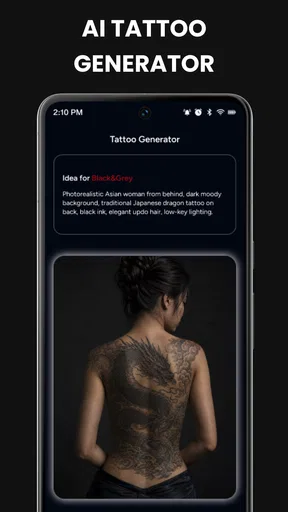
The strongest part of the concept is that it gives indecisive users somewhere to begin. A person may know they want a snake, a flower, a geometric symbol, or a small memorial design, but not know how to describe the composition. An AI-assisted workflow can help turn that broad thought into several visual possibilities, which is more useful than staring at an empty canvas.
I find this particularly helpful when the goal is comparison rather than instant perfection. Instead of asking, “What exact tattoo should I get?”, I would use the app to ask more practical questions: should the design be narrow or wide, delicate or bold, centered or angled, compact or extended? Those choices affect how a tattoo reads on the body, and generating alternatives makes the conversation more concrete.
A good workflow is to begin with a simple idea and then narrow it down. I would first create a few broad concepts, save the one with the best overall shape, and only then think about details. Adding too many requirements at once can make an AI result feel visually confused. A clean silhouette is usually more valuable at the beginning than a crowded collection of symbols.
Where the AR preview earns its place
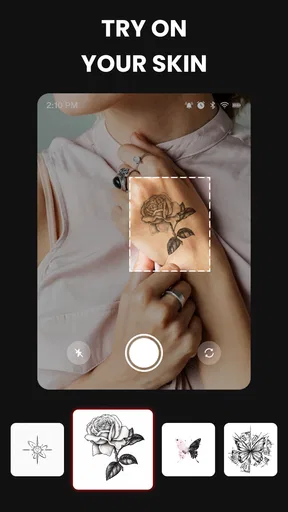
The AR try-on element is more useful for judging proportion and placement than for making a final decision about the tattoo. A design that looks attractive as a flat image may feel too large on a forearm, too busy near a joint, or poorly balanced against the natural curve of a shoulder. Seeing an approximation in position helps expose those problems earlier.
I would use the preview with a few different body positions rather than trusting one image. A tattoo can look centered while the arm is held in one direction and appear shifted when the wrist or elbow moves. This is one of the less obvious benefits of a placement preview: it encourages me to think about the design as something that lives on a moving body, not as artwork on a white rectangle.
There is also a useful emotional advantage. Trying a concept virtually can reduce the pressure of imagining a permanent change immediately. If I am unsure about a large piece, I can test the visual idea first and decide whether the style still appeals to me when it is placed where I actually intend to wear it.
Turning a concept into a stencil discussion
The stencil maker is potentially the most practical part for users who already have a direction. A stencil-like output helps separate the main structure from decorative color and surface effects. That can reveal whether the tattoo has a readable outline, whether small elements are too close together, and whether the design depends too heavily on shading that may not translate cleanly.
I would still treat this result as a discussion aid. A professional artist may redraw lines, simplify details, adjust spacing, or change the composition to suit skin, body movement, and long-term readability. The app can help me communicate what I mean, but it cannot replace the artist’s judgment about needle technique, line weight, healing, or how a design will age.
One practical tip is to compare the generated artwork with its stencil-oriented version before becoming attached to it. If the image only works when it contains soft effects and tiny details, that is a warning sign. If the main shape remains recognizable after simplification, it is a stronger candidate to take into a consultation.
Speed expectations during generation and preview
The app’s workflow is designed around quick experimentation, but AI creation and camera-based previews are naturally more demanding than browsing a static gallery. I would expect the lightest interactions, such as moving through a design or reviewing an idea, to feel easier than repeatedly generating complex concepts. The perceived speed will also depend on the phone, the quality of the camera view, and the complexity of the task.
For that reason, I would not judge the app by one slow moment during a busy creative session. A better test is whether it lets me move from idea to comparison without constant interruptions. If I am planning a tattoo, I usually need a handful of useful directions rather than an endless stream of variations. The app feels most efficient when I make deliberate requests and evaluate them carefully instead of treating generation like an unlimited scroll.
Keeping the first prompts visually focused should also make the process easier to manage. Asking for a clear subject, a recognizable style, and a specific placement goal is more productive than requesting every possible detail immediately. This is not just an artistic tip; it reduces wasted attempts and makes the results easier to compare.
What happens during heavier use
The heavier moments are likely to come when I combine repeated AI generation with camera-based placement checks and stencil preparation in the same sitting. Those tasks ask more from a phone than ordinary reading or image browsing. On an older or modest device, I would give the app a little patience and avoid switching rapidly between several demanding actions.
A sensible session would be divided into stages. I would generate concepts first, remove the weak ones, inspect the strongest design in the preview, and only then prepare a stencil-style version. That sequence is more efficient than processing every idea through every tool. It also keeps the phone from doing unnecessary work and gives me a clearer creative decision at each step.
If the device begins to feel warm or the camera view becomes less comfortable to use, I would pause rather than forcing a long session. Tattoo planning is not a task that benefits from rushing. A short break also makes it easier to notice whether I am genuinely improving the design or simply generating more versions because I have not made a decision.
Stability and recovering from an interrupted session
For a design app, reliability is not only about avoiding crashes. It is also about whether I can recover sensibly after an interruption, such as leaving the app, losing a camera view, or deciding to return to an earlier concept. I would approach the workflow with a simple habit: preserve the strongest results as I go rather than assuming every experiment will remain immediately available.
This is especially important before changing from generation to AR preview or stencil preparation. Once I have a promising idea, I would keep a copy outside the active editing flow if the phone allows it, or at least record the key version before continuing. That gives me a fallback when experimenting with a new variation produces something worse.
I also recommend taking a moment to inspect the output after each major transition. A design can look acceptable in one view and reveal awkward spacing or missing structure in another. Checking the result before moving onward is a small habit, but it prevents a weak intermediate version from becoming the basis for the final reference.
Device constraints that matter most
The minimum operating system is Android 8.0, so compatibility begins with a relatively broad range of Android phones. Compatibility alone does not guarantee the same experience on every device, though. Camera quality, screen size, available memory, and general processing ability can affect how comfortable the AR and AI-oriented parts feel.
A smaller screen may be perfectly adequate for choosing ideas but less comfortable when inspecting fine stencil details. A phone with a weaker camera may also make placement previews less convincing, especially in difficult lighting. I would use a well-lit space and hold the device steadily when evaluating body placement, because poor viewing conditions can make the app appear less precise than the concept itself.
Storage and organization matter too. Creative experimentation can produce many near-duplicates, and keeping everything makes it harder to identify the design worth showing an artist. I would create a small shortlist, label concepts by placement or style in my own notes, and remove obvious failures. This turns the app from a novelty generator into a more manageable planning tool.
People who need highly detailed professional illustration work may find the phone format limiting. The app is convenient for exploration, but a tablet, desktop drawing program, or direct collaboration with a tattoo artist can be better when the design requires exact line control, layered editing, or extensive manual refinement.
Who will get the most from it
I think the app is a good fit for first-time tattoo planners, people comparing several visual directions, and anyone who struggles to explain an idea in words. It can also help friends plan matching concepts, provided they use the generated images as conversation starters rather than assuming both tattoos should be copied without adjustment.
It is useful for a realistic everyday situation: I might be considering a small forearm tattoo but be unsure whether a vertical or horizontal composition suits the space. I could create both approaches, inspect their silhouettes, try their approximate placement, and take the stronger reference to a consultation. That is a practical decision-making process, not just entertainment.
The app may also help someone who already has a subject in mind but wants to explore style. A single idea can feel very different as a fine-line concept, a bold graphic shape, or a more ornamental arrangement. Comparing those directions before contacting an artist can make the appointment more focused and reduce vague back-and-forth.
When another option is better
I would skip this app if I already work comfortably in professional illustration software and need precise control over every curve, layer, and measurement. A dedicated drawing application is better for constructing an exact custom composition. I would also choose direct artist collaboration sooner if the tattoo involves complex anatomy, extensive lettering, cultural symbolism, or a design that must fit around existing work.
It is not the right tool for deciding whether a tattoo is medically or technically suitable. It cannot replace advice about skin conditions, healing, placement risks, or long-term maintenance. The virtual preview can show an approximate appearance, but it should not be mistaken for a guarantee of how the finished tattoo will look on real skin.
There is another trade-off with AI-generated artwork: convenience can encourage designs that feel visually polished but personally generic. I would use the generated result as a starting point and then ask what makes the tattoo meaningful to me. Removing a decorative element, changing the proportions, or combining the concept with an artist’s original interpretation may produce something more individual than accepting the first attractive image.
Free access and audience fit
The app is free, which lowers the barrier to trying the workflow before committing to a tattoo idea. That is valuable because many people are not ready to pay for a design tool while they are still exploring basic concepts. The Everyone content rating also makes it broadly approachable for general creative use.
Free access does not remove the need for judgment. The real cost of a tattoo comes later, and a convenient preview should not push anyone into a permanent decision too quickly. I would spend time comparing the design in different sizes, checking whether the subject still reads clearly, and discussing the result with a qualified artist before booking anything.
The app’s audience is therefore wider than professional designers but narrower than people looking for a simple drawing pad. Its value comes from the combination of idea generation, placement visualization, and stencil preparation. If I only want to sketch manually, another art app may feel more natural. If I want to explore a tattoo from concept through reference image, this focused approach makes more sense.
My performance verdict
After looking at the complete workflow, I see AI Tattoo Generator & Maker as a planning companion with a useful performance balance when used in short, organized sessions. The most demanding parts are the ones that matter most to its purpose: creating visual alternatives, checking them through a camera-based view, and simplifying them toward a stencil. I would expect the experience to be most comfortable on a reasonably capable phone with good lighting and enough room to handle creative files.
Its biggest strength is not that it magically produces a tattoo ready for the needle. Its strength is that it helps me make decisions earlier: which shape feels right, whether the placement works visually, and whether the design remains readable when reduced to essential lines. Those are questions that a static inspiration gallery cannot answer as directly.
Its main limitation is equally important. AI output can look finished before it is truly personal, technically suitable, or ready for skin. The AR view is an approximation, and the stencil result still needs an experienced human eye. Anyone expecting automatic professional artwork with no revision will probably be disappointed.
For me, the best recommendation is straightforward: use it to explore, compare, and communicate. Save the strongest concept, test it in the intended area, inspect the simplified structure, and bring it to a tattoo artist for refinement. With that mindset, the free app from GLOBAL SOFT .LTD offers a practical way to move from a loose idea to a more useful reference without pretending that a phone can replace the final creative and technical decisions.
Verdict
Strengths of AI Tattoo Generator & Maker
- Generates multiple tattoo concepts quickly from simple text prompts.
- Useful for exploring styles before consulting a professional tattoo artist.
- Offers inspiration for placement, themes, and visual combinations.
- Can help users compare several designs without drawing skills.
- Convenient for brainstorming personalized tattoo ideas anywhere.
Limitations of AI Tattoo Generator & Maker
- AI designs may contain distorted details or awkward lettering.
- Generated images may not translate well to real tattoo techniques.
- Some features or designs may require in-app purchases.
- Results can feel repetitive when using common prompts or themes.
- Privacy policies should be checked before uploading personal photos.
Similar Picks in This Category
View All
Canva: AI Photo & Video Editor
Canva4.8

PENUP – Drawing-sharing SNS
Samsung Electronics Co., Ltd.4.5

Crafto
Kutumb App4.6

Sketchbook
Sketchbook4.1

ibis Paint X
ibis inc.4.5

Adobe Express: AI Photo, Video
Adobe4.6
Frequently Asked Questions
What is AI Tattoo Generator & Maker, and how does it work?
AI Tattoo Generator & Maker is a creative design app that uses artificial intelligence to turn written ideas into tattoo concepts. You can describe a subject, style, placement, or mood, and the app generates visual suggestions based on your prompt. It is useful for exploring inspiration before visiting a tattoo artist, although the generated design should be treated as a starting point rather than a finished, professionally prepared stencil.
Can I create a tattoo design based on my own idea or image?
Yes, the app is generally designed to let users enter personalized descriptions, making it possible to experiment with symbols, names, animals, lettering, patterns, and different tattoo styles. Depending on the version and device, image-upload or reference features may also be available. Results can vary considerably, so detailed prompts usually produce more useful concepts. Always check the final spelling, proportions, and details before showing the design to a tattoo professional.
Is AI Tattoo Generator & Maker free to download and use?
The application may be free to install, but some features can be limited by advertisements, daily generations, watermarks, credits, or premium subscriptions. Before generating multiple designs, review the pricing page and subscription terms shown in the app store or inside the application. If a trial is offered, confirm its duration and cancellation requirements, because subscriptions may renew automatically unless canceled through your Android or iOS account settings.
Can I use the generated tattoo directly as a tattoo stencil?
Generated images are best used for inspiration and communication with an experienced tattoo artist, not as guaranteed production-ready stencils. AI designs can contain uneven lines, incorrect lettering, awkward symmetry, or details that will not translate well to skin. A professional artist should redraw, resize, simplify, and adapt the concept to the chosen body area. This step is especially important for small tattoos, portraits, fine lines, and text-based designs.
Does the app protect my prompts, photos, and generated designs?
Before using personal photographs, names, or sensitive ideas, read the app’s privacy policy and the permissions requested during installation. AI services may process prompts and uploaded images on remote servers, and policies can differ regarding storage, deletion, and use for service improvement. Avoid uploading private or identifying material unless you understand how it is handled. Also remember that generated artwork may have usage restrictions, especially if you plan to sell or commercially reproduce it.
